





Picture day without a complete roster of subject data used to mean extra staff, check-in friction, and hours of manual sorting afterward. But PhotoDay’s Public and Group Galleries are built to solve all of that hassle while making picture day better for everyone involved.
Keep reading to learn how these versatile gallery types work and how to get the most out of them.
What Public and Group Galleries Actually Solve
Picture this: it’s a week before picture day, and you still haven’t received any subject data from the organization. We’ve all been there! When a school or league won't hand over a roster, or when it shows up incomplete two days before picture day, your entire workflow gets harder. More staff. More manual matching. More stress.
Public and group galleries bypass that entirely. Neither type requires you to assign photos to individuals in advance. You don't need to know the order you're photographing in. If a kid needs to get back in line for a redo, that's fine. Just upload the images, and FaceFind handles identification when families search in the gallery.
As Emily (Account Executive at PhotoDay) put it during a recent webinar: "This is where PhotoDay really shines. You don't need to know who you're shooting. You don't need to know the order that you're shooting in...Really think about what that can do for you."
What can it do? Let you focus on the photography side of things to capture more poses and better expressions with fewer manual tasks.
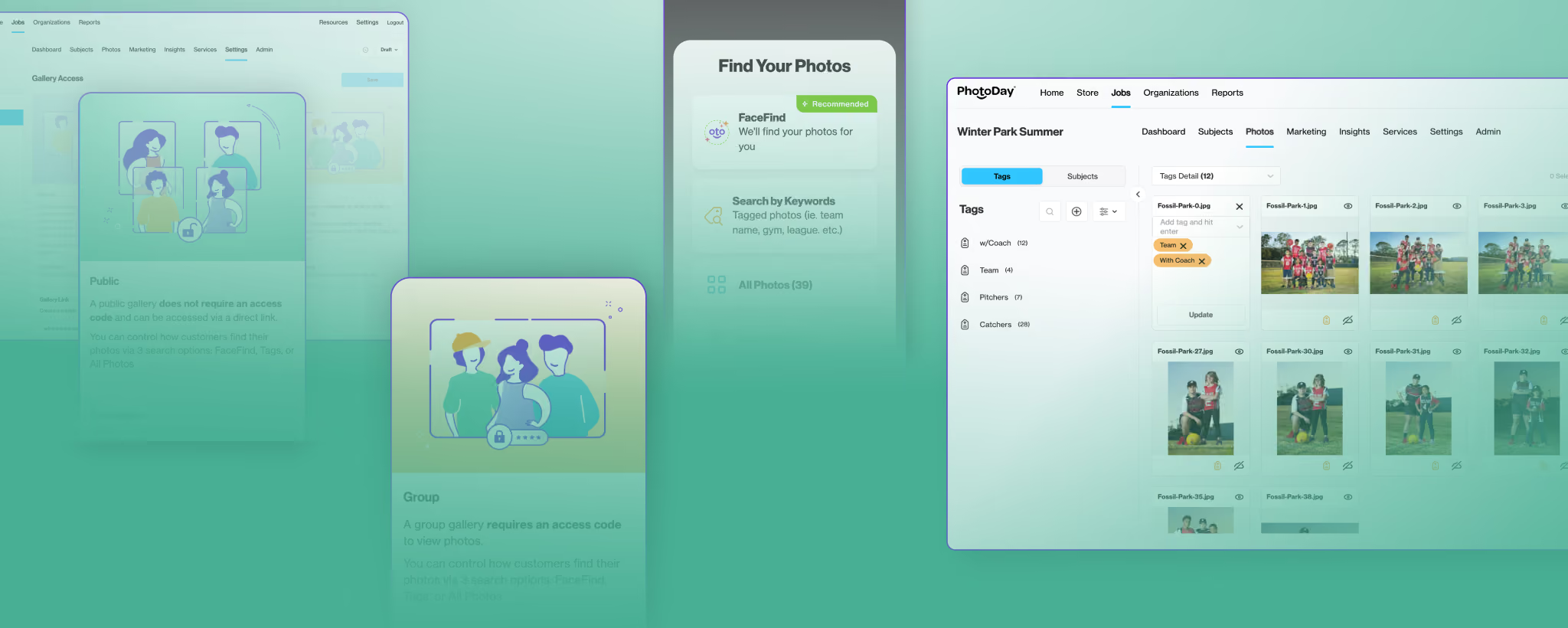
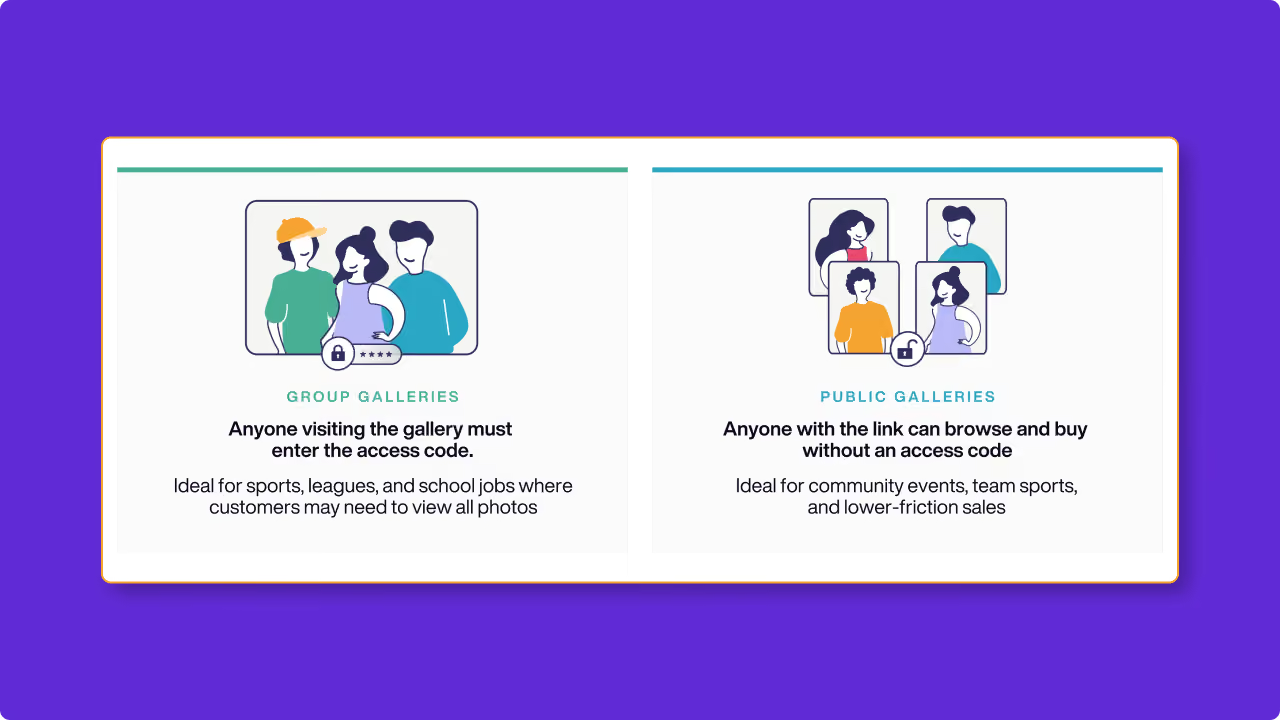
The two gallery types share that core benefit. The only difference is access:
- Group Galleries use an access code. Customize it (a league name and year works well) and share one code for the whole gallery of images.
- Public Galleries use a link and don’t require an access code. Anyone with the URL can browse the full gallery.
Tagging: How Photos Get Organized
Since you're not assigning photos to individuals, tags become your organizational layer on top of FaceFind. Think of them as folders parents can browse if they'd rather filter by team than upload a reference photo.
Three ways to apply them:
- Lightroom keywords are automatically pulled in as tags during upload.
- Folder structure does the work for you. Upload a parent folder with subfolders (Team A, Team B, Team C) and PhotoDay tags images by subfolder name.
- Drag and drop inside the platform if you prefer to tag manually.
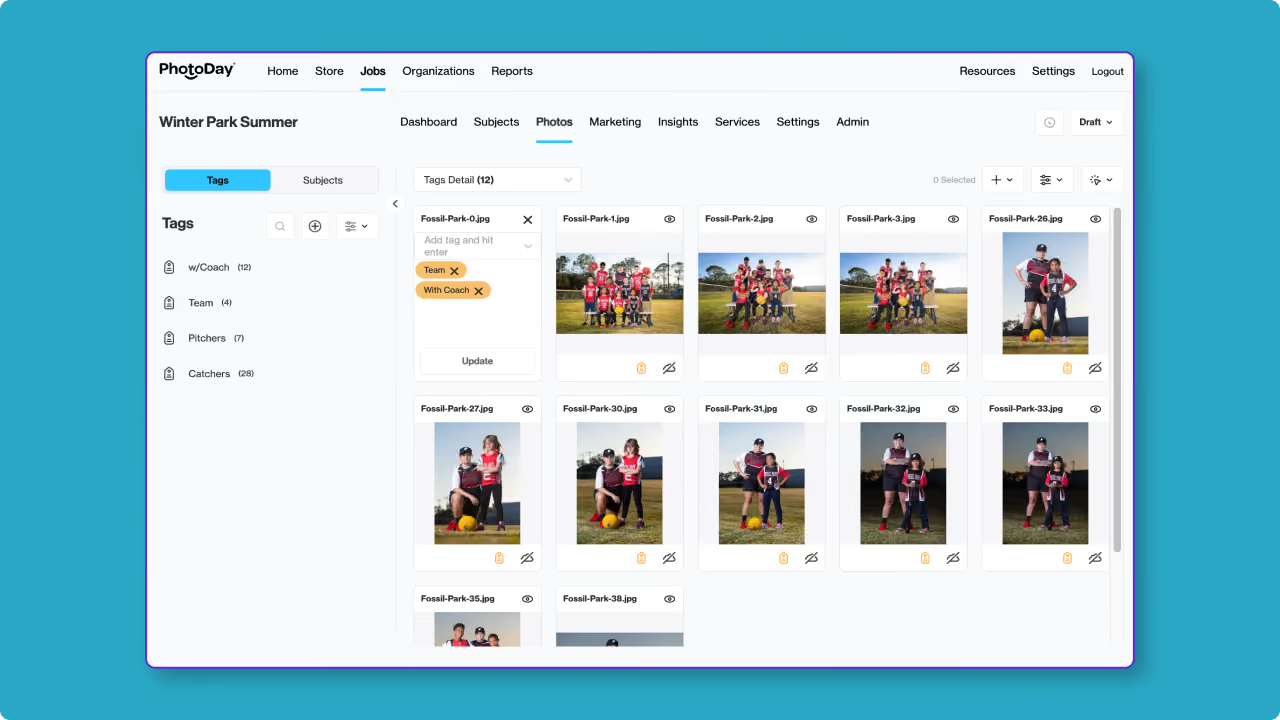
For team photos, there’s one additional setting worth knowing: You can select those images and disable digital downloads to make them print-only. That keeps team photos from being downloaded and shared before all families have had a chance to order.
What Families Experience
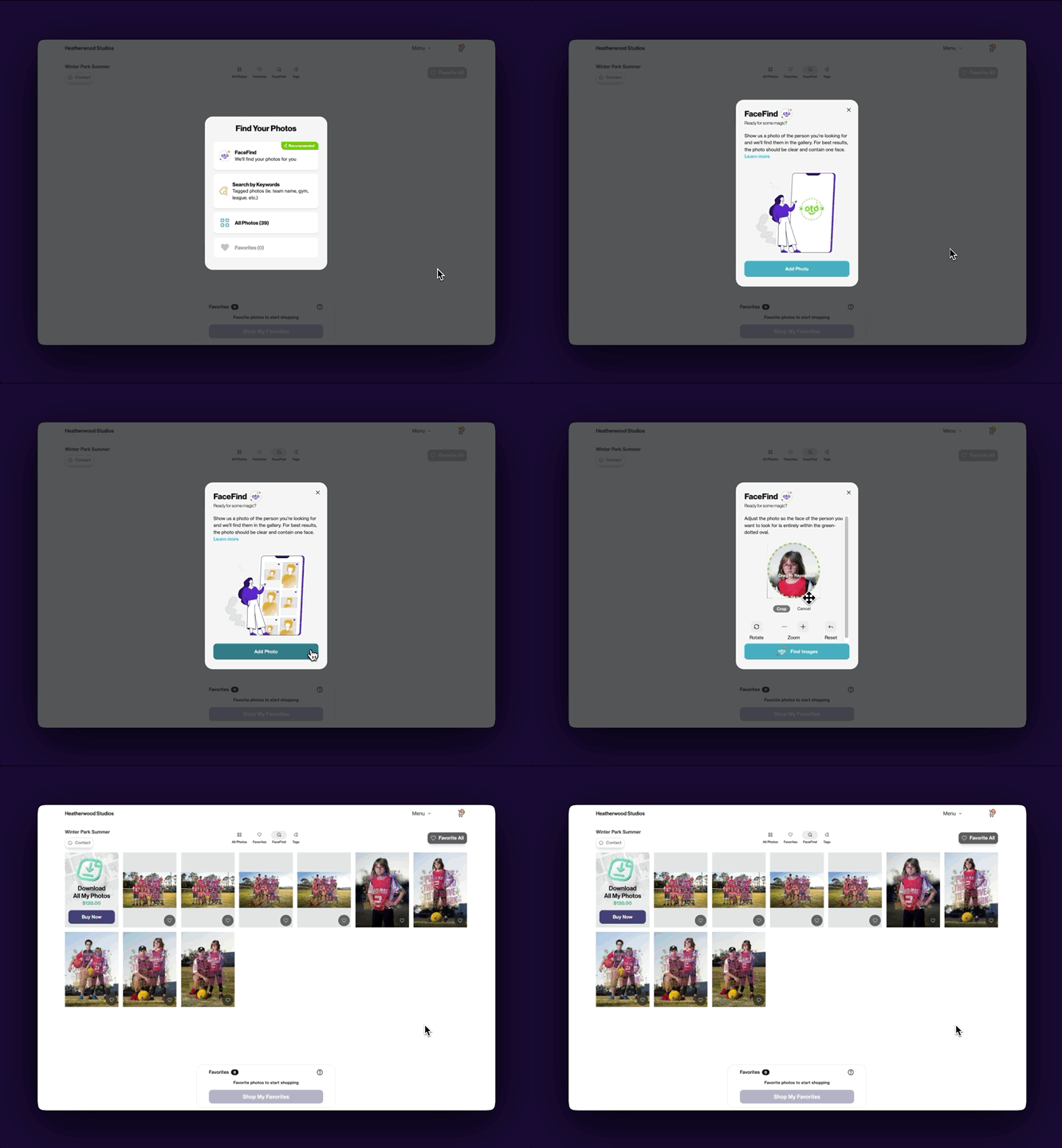
The customer experience is designed to create an emotional connection fast. When someone enters a group or public gallery, they're immediately prompted to use FaceFind (if enabled) to search the gallery: upload a reference photo of their child, and the gallery returns every image where that face appears. The technology handles crowds, action shots, and even large groups—if a parent can identify their kid in a photo, FaceFind can, too.
For families who'd rather not upload a photo, tag-based browsing lets them filter by team, session, or any other criteria you’ve established. And if the “All Photos” search option is enabled, they can scroll through the entire gallery, find their photos, then click "find similar" to pull up more images of that same person.
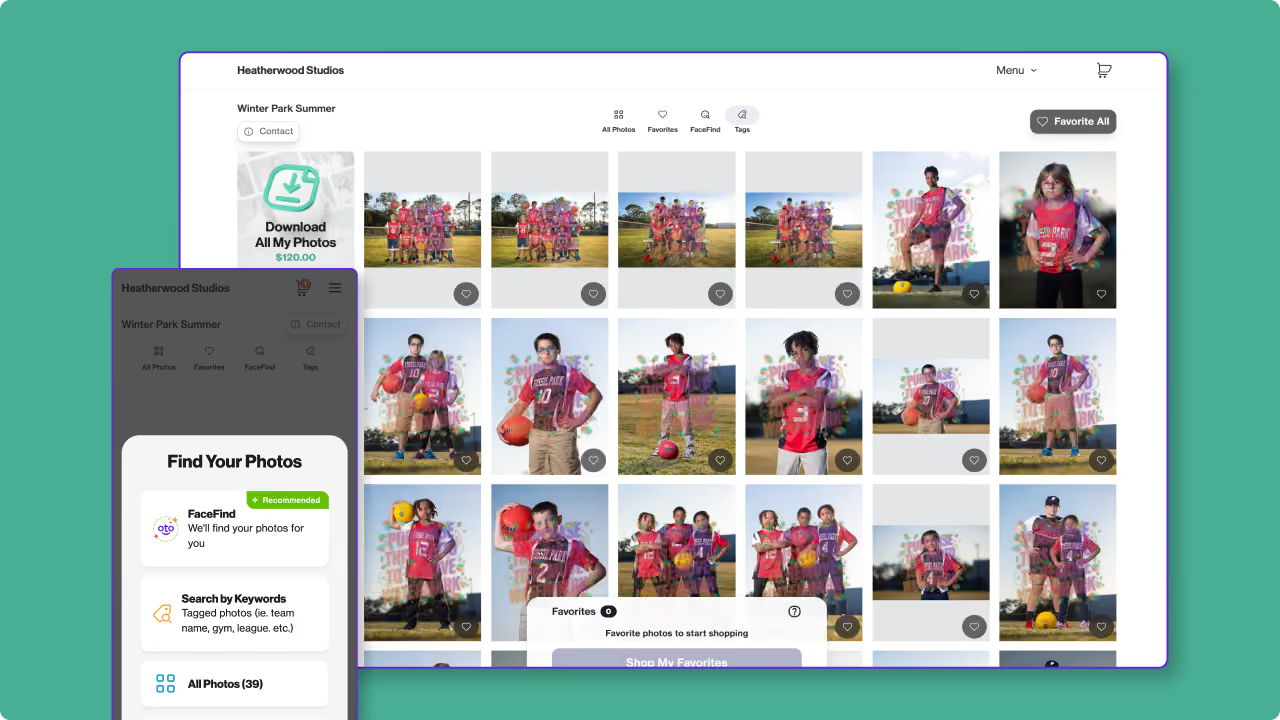
You can choose to offer all three search options, just FaceFind, or any combination that best fits the job.
The result: "high buyer conversion," as Emily described it—because families reach their child's photos quickly, and that emotional connection drives the sale.
It helps that the experience is built for the way families actually shop: Austin (Studio Activation and Growth Manager at PhotoDay) noted that about 76% of orders come through mobile devices, which is why PhotoDay's galleries are optimized to feel like an app on a phone rather than a scaled-down website.
Setting Up the Job
When you create a job, you'll move through a few steps (like job name, organization details, picture day date, etc.), including choosing the gallery access type. When you choose group or public, you'll confirm the access code or customize the public URL, set an optional expiration date, and configure your storefront.
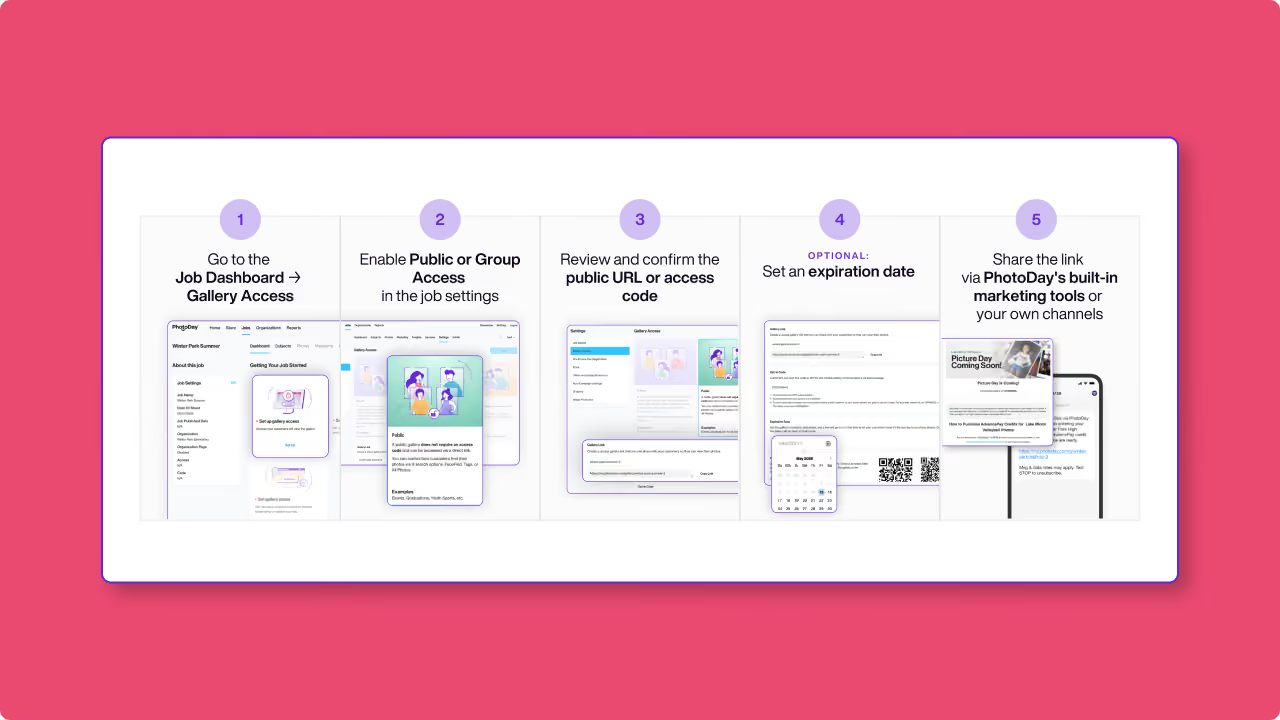
A few things worth getting right at setup:
- Expiration date: Set it at least 35 days out. PhotoDay sends automated reminders on days 1, 3, 5, 7, 14, and 30 after publishing, plus a last-chance reminder when the gallery is about to close. "Any procrastinating parents—that's when they're going to order," Austin noted. Expired galleries can be republished at any time.
- Price sheet: Keep names generic so you can reuse them across multiple sports and seasons. Job-level product themes reduce unnecessary choices with built-in design elements, speeding up the checkout experience for families.
- Image protection: Auto Blur deters screenshots on desktop, while Info Overlay places the customer's name, email, and phone number as an additional watermark to discourage unauthorized sharing. Screen Block for mobile devices is currently in development.
Use Marketing QR Codes to Get Opt-Ins
Getting families into PhotoDay’s automated marketing sequence is the most important thing you can do before and during picture day. Once someone opts in, our automated messages handle the follow-up. Your job is to make opting in as frictionless as possible.
PhotoDay recently launched two marketing QR code types built specifically for this:
- URL QR Code: Opens the gallery in the customer’s web browser and prompts them to subscribe to text notifications upon entering.
- SMS QR Code: Automatically creates an opt-in text message with the gallery’s access code to 90738. All the customer has to do is click Send to subscribe and receive a direct link immediately.
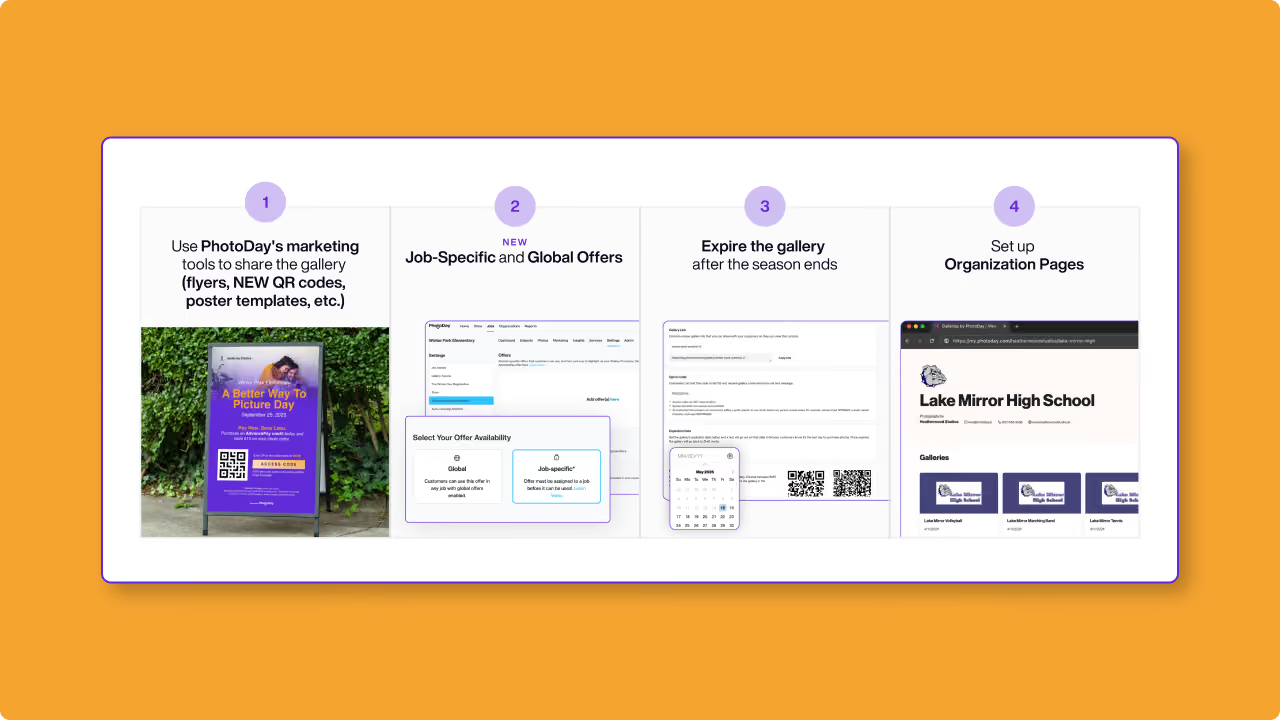
Put these on flyers, posters, marketing emails, or hand them to a league coordinator to share with their group chat. The more touchpoints you create before photos go live, the larger your opted-in audience when they do.
Storefront Tips: AdvancePay and Offers
AdvancePay works as a credit applied toward any order. Customers buy the credit early and use it when the gallery opens. There's no package lock-in, so if a family wants to order more than their original AdvancePay credit amount after seeing the photos, nothing stands in the way.
Attach an offer like free shipping to AdvancePay to reward early buyers. For families who didn't order early, a Gallery Promotion banner lets you run a separate incentive at a higher threshold, like free shipping on orders over $75. Tip: Always make sure your AdvancePay offer is the best deal.
Job-Specific and Global Offers give you additional flexibility. Global offers apply across all active jobs, while job-specific offers apply only to the ones they’re assigned to. Used together with AdvancePay, they give you layered incentives that can move buyers at different points in the sales window.
Keep Things Simple with Organization Pages
Organization Pages are an understated but powerful tool in PhotoDay! Use them to group multiple jobs under a single landing page with a permanent link.
The practical value: if a parent comes back to order graduation photos and happens to see last year's wrestling gallery still on the page, that's an additional sale with no extra work on your end!
"Organization Pages are one of the most underutilized tools in the PhotoDay ecosystem," Emily said during the webinar. The studios making the most of them are posting QR codes in high-traffic areas—main offices, gyms, locker room hallways—and picking up sales they otherwise would have missed entirely.
Use Subject Data When You Need It
Group and public galleries are built for jobs without rosters, but they can also work with subject data when your job requires it. If you're producing composites and need first name, last name, and jersey number for each subject, you can import a CSV through the PhotoDay Capture app and still run a group gallery with a single access code for families.
The benefit: structured subject data for backend production and simple access on the customer side. Learn more about using subject data in different gallery types.
The Short Version
Public and group galleries remove the dependency on subject data to simplify picture day—less staffing, less check-in friction, more time to focus on the photography itself. Set up the job correctly, get families opted in early, intentionally expire the gallery, and let the automated marketing handle the follow-up. The system is built to handle the rest.
If you're not already using PhotoDay, there's no upfront cost and no monthly subscription. You only pay when you sell!
Sign up to get started or watch the webinar replay for more tips and a step-by-step walkthrough.