Photo Selection
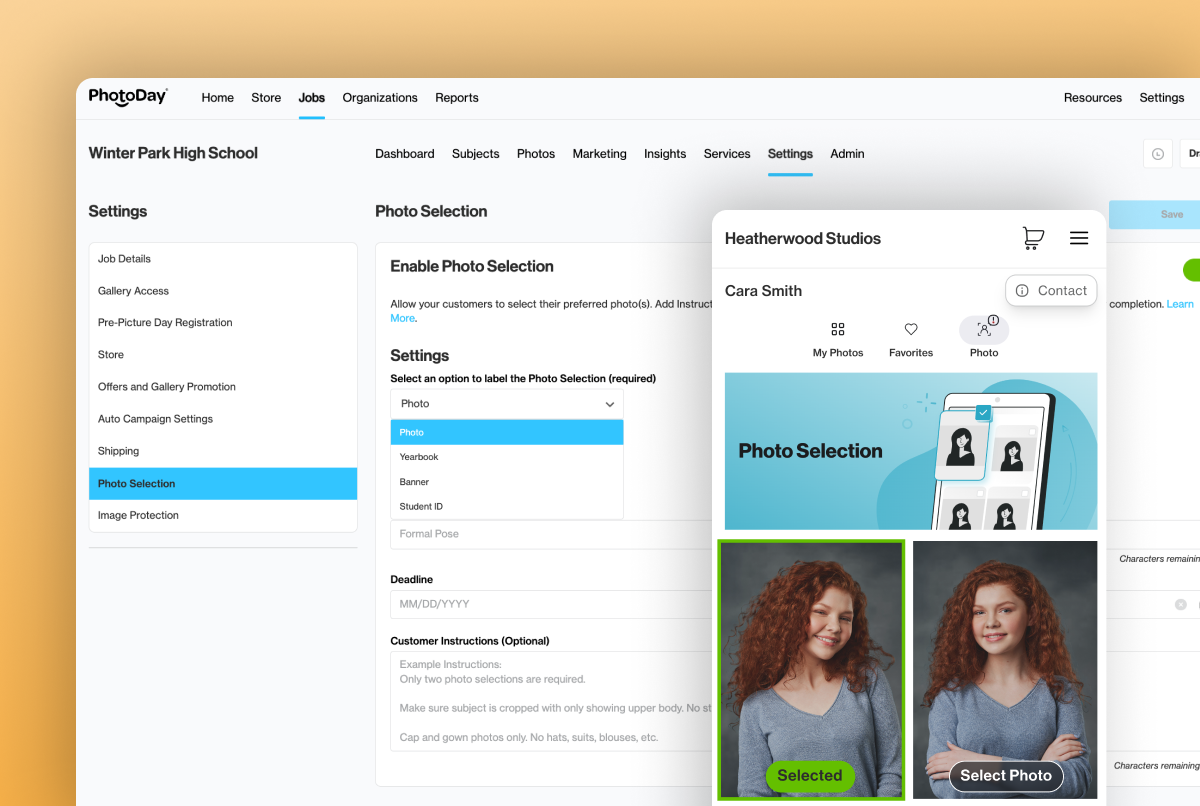
One photo selection workflow, now with flexible naming
When we launched Yearbook Selection, the goal was simple: let customers choose their favorite poses right in the gallery, without paper forms or outside software. But not every selection is for yearbooks. Banners, Student IDs, and general photo selection follow the same pattern, but until now the feature only had one name.
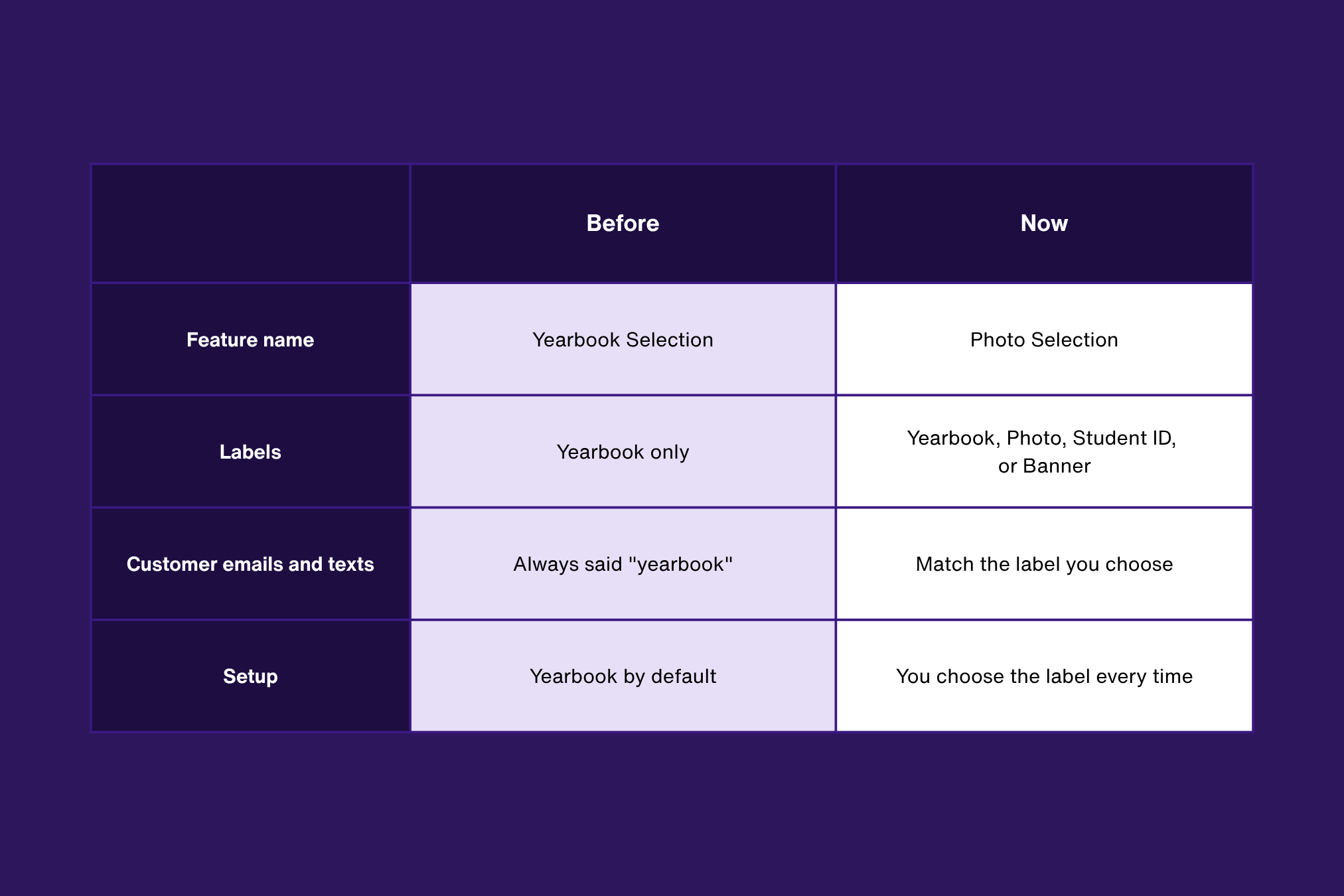
Yearbook Selection is now renamed Photo Selection, and you can label it as Yearbook, Photo, Banner, or Student ID Selection to match each picture day. Your customers see language that fits what they're choosing, and you get one workflow that covers every kind of selection.
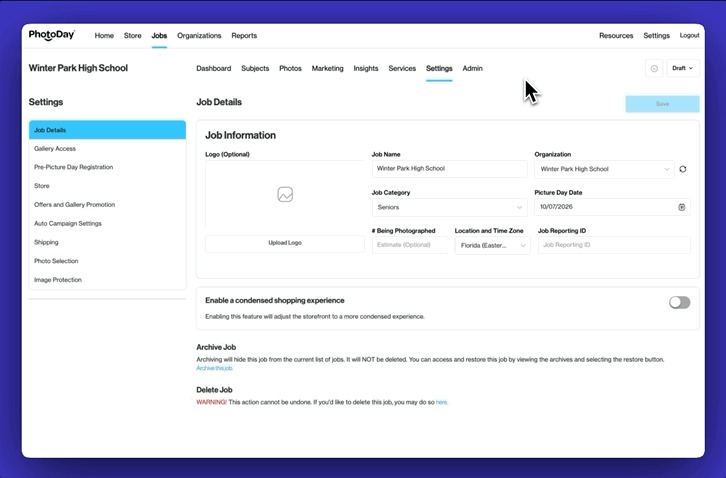
Photo Selection for any picture day
If you've ever turned on Yearbook Selection to gather pose selections for a banner order and hoped your additional instructions would be enough to clarify—you’re not alone. A label that doesn't match the job can lead to questions you don't have time for during busy season.
So we made selection flexible enough to fit the way you actually use it.
Pick the label that fits
Choose Yearbook, Photo, Student ID, or Banner Selection when you set it up. The label you pick is the one your customers see.
No surprise defaults
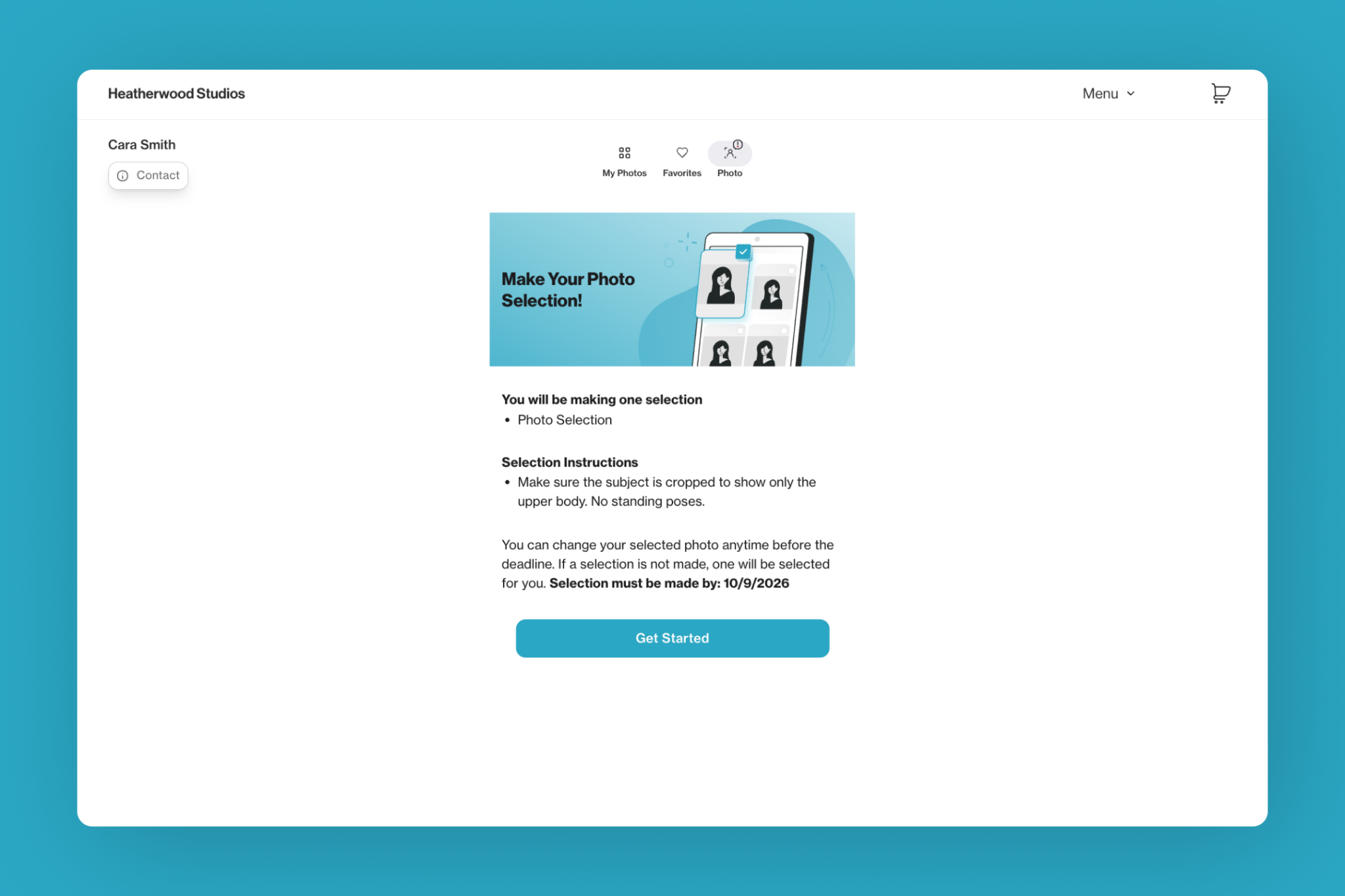
There's no preset label. You decide when you turn on photo selection, so customers never get yearbook language for a job that has nothing to do with a yearbook.
Clear marketing for customers
Any Photo Selection-related emails or texts reflect the label you choose. When a parent gets a reminder, it matches exactly what they're being asked to select.
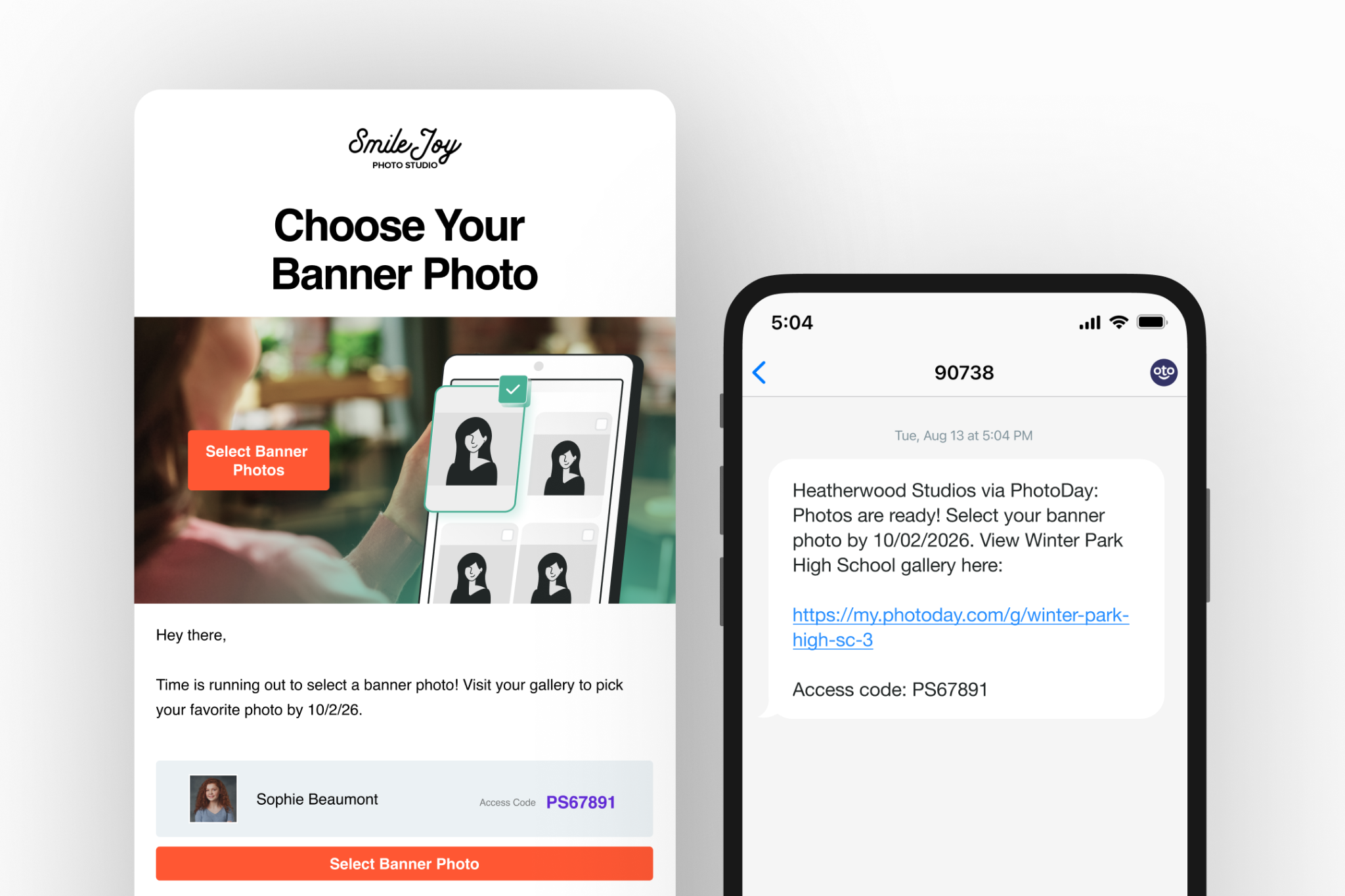
The workflow you already know
Everything else works the way it always has for Yearbook Selection. Customers choose in their gallery, we send reminders until your deadline, and you can review and adjust selections from the Studio Panel. Need to share selections with a client? Simply use the Photo Selections as primary photos for your Yearbook - PSPA exports, then share with the school or organization like normal!
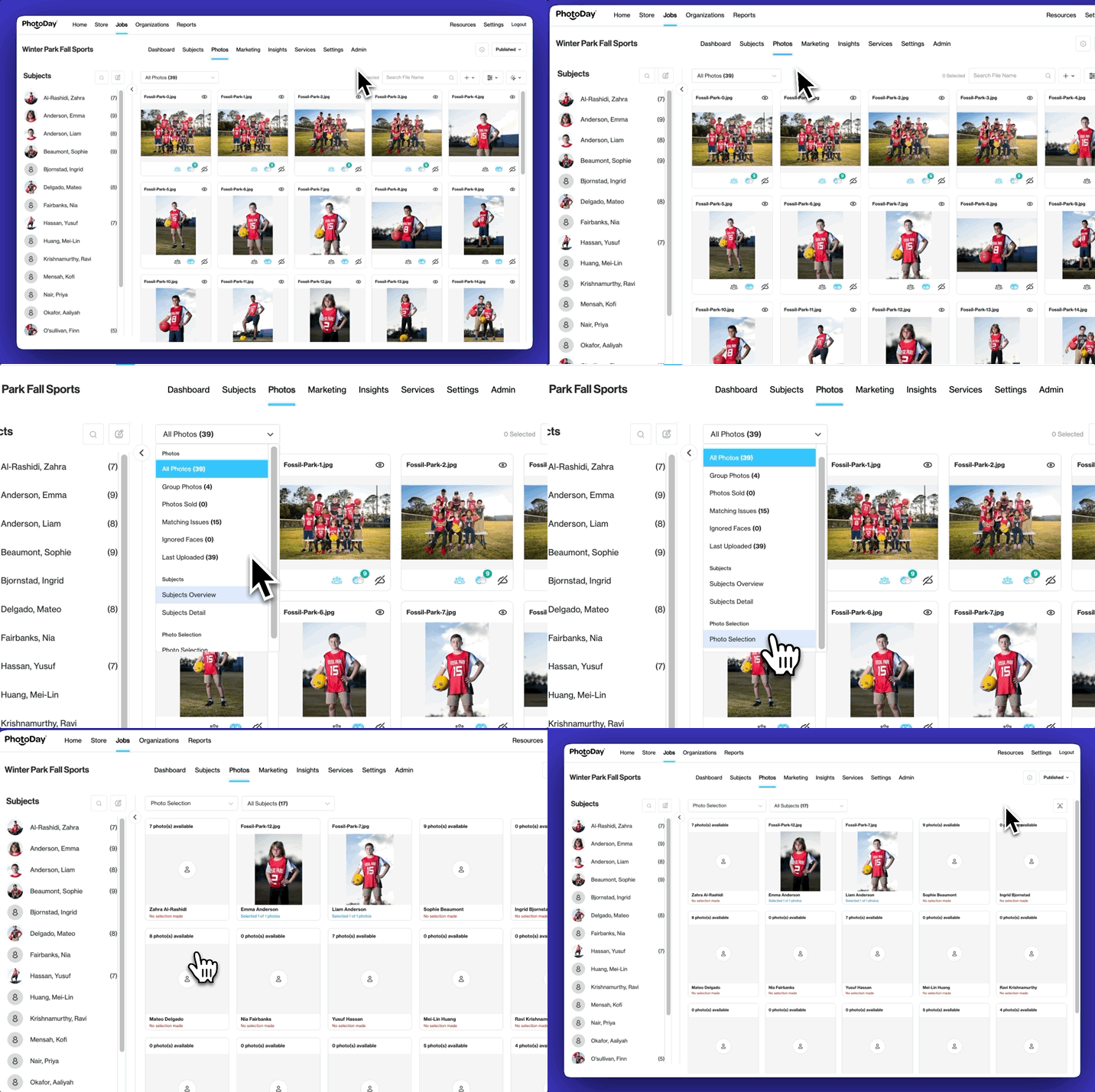
Start using Photo Selection now
Photo Selection is live now! Setting it up takes just a few minutes:
- Open the settings for a private gallery job.
- Turn on Photo Selection and choose your label: Yearbook, Photo, Student ID, or Banner.
- Set your selection deadline and publish.
{{rt-cta-button}}


